A membership is a club service that gives ongoing access to the club. You use it to sell or offer club membership. The guided form sets its name, prices, inclusions and joining requirements, then publishes it on the club page.
Basics
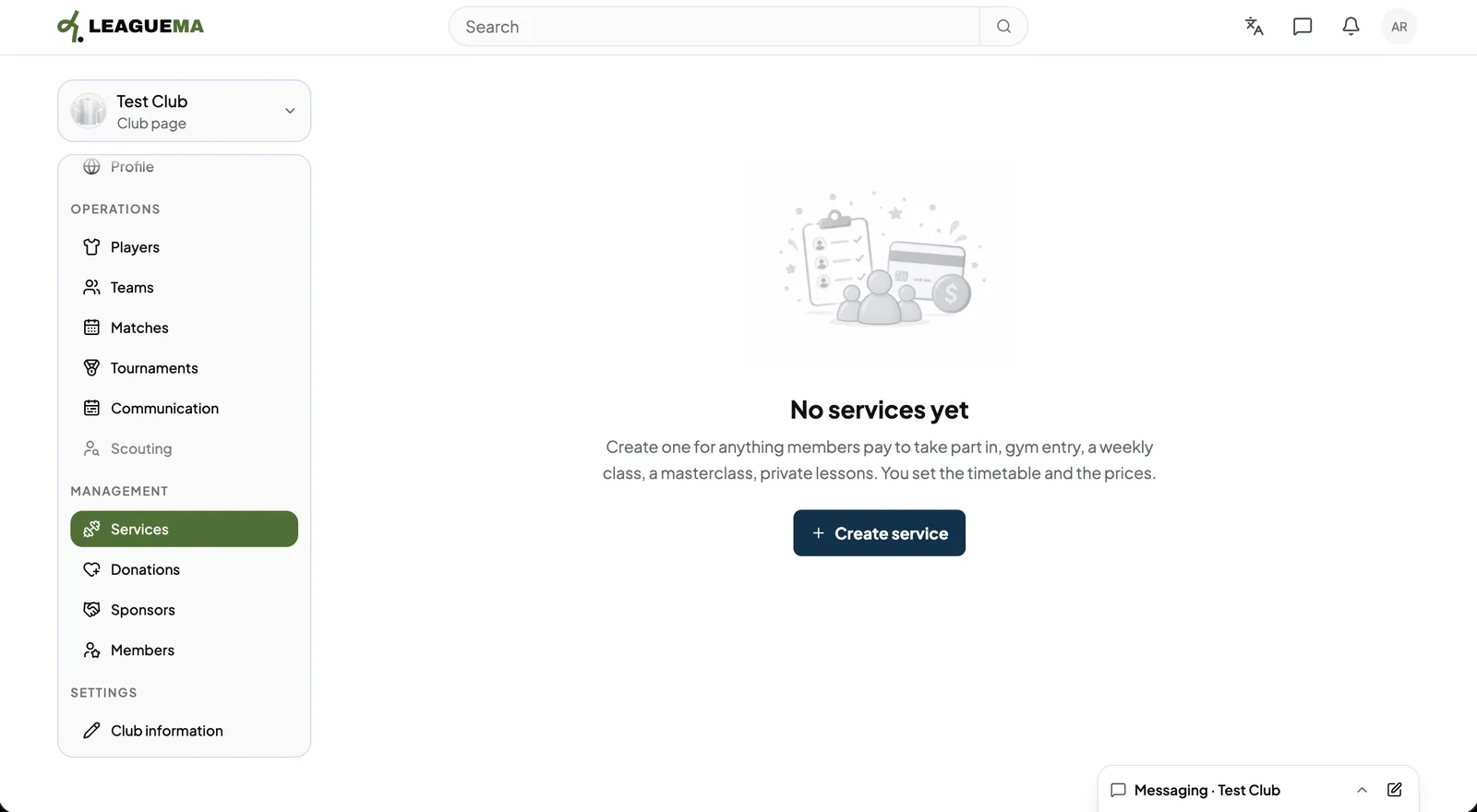
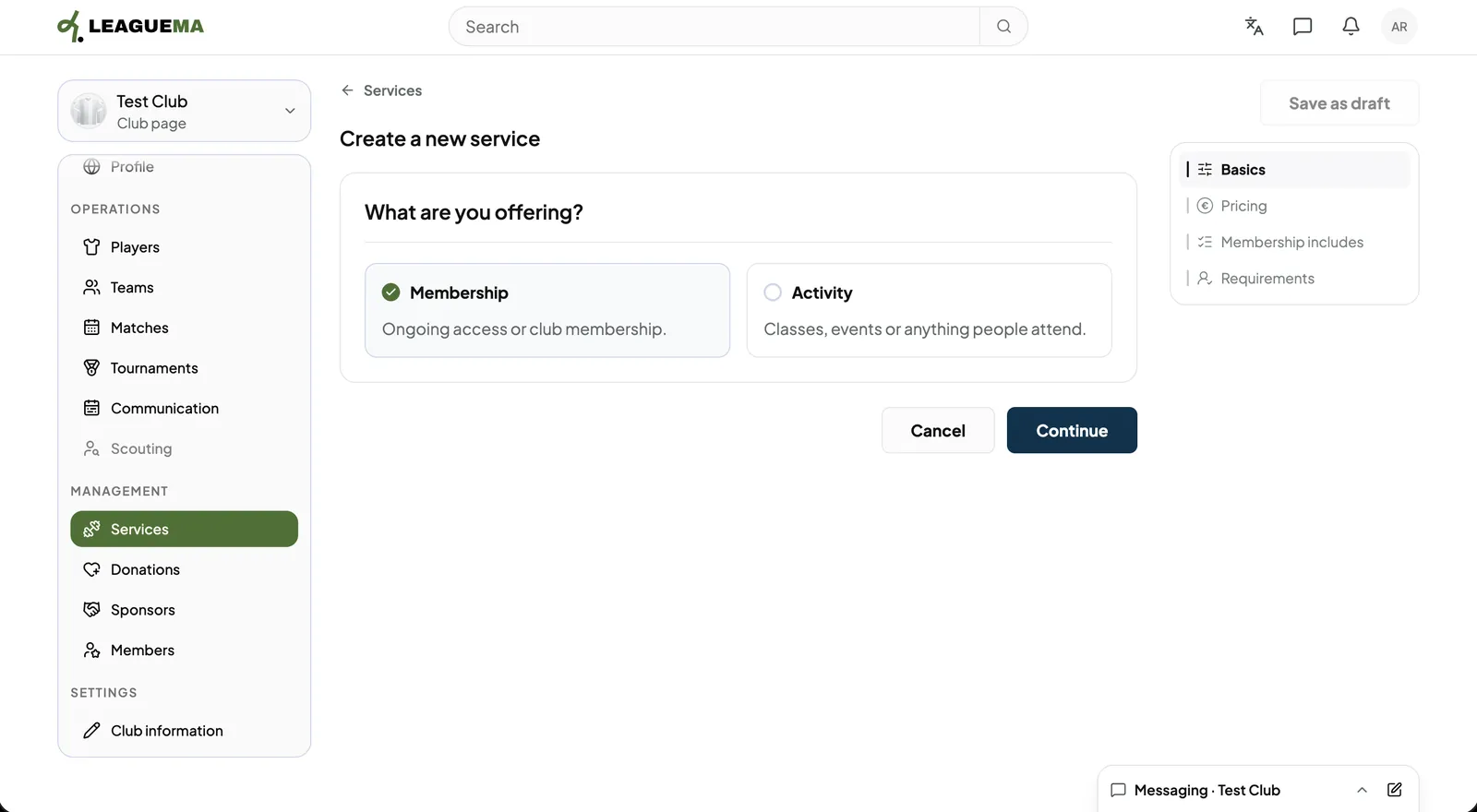
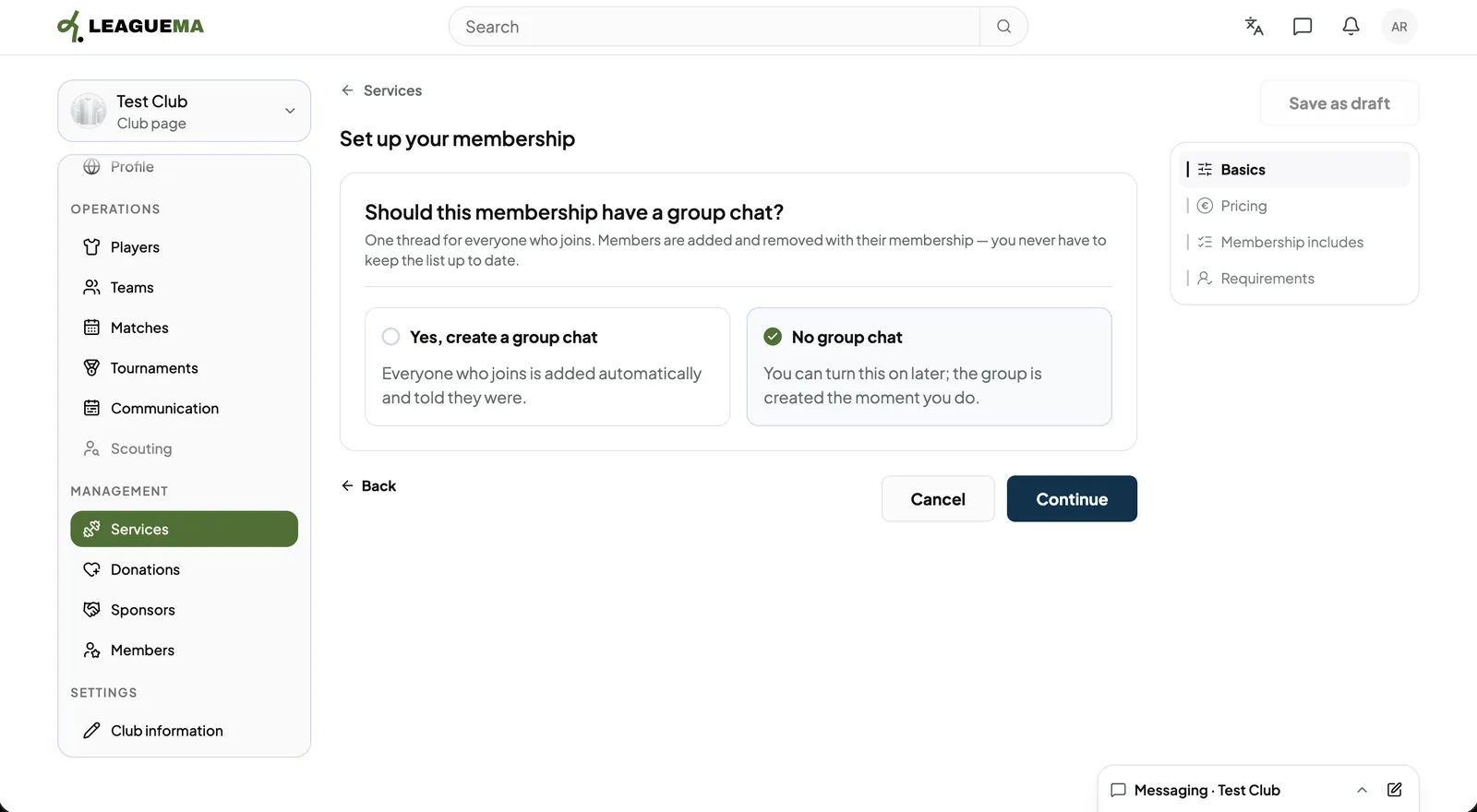
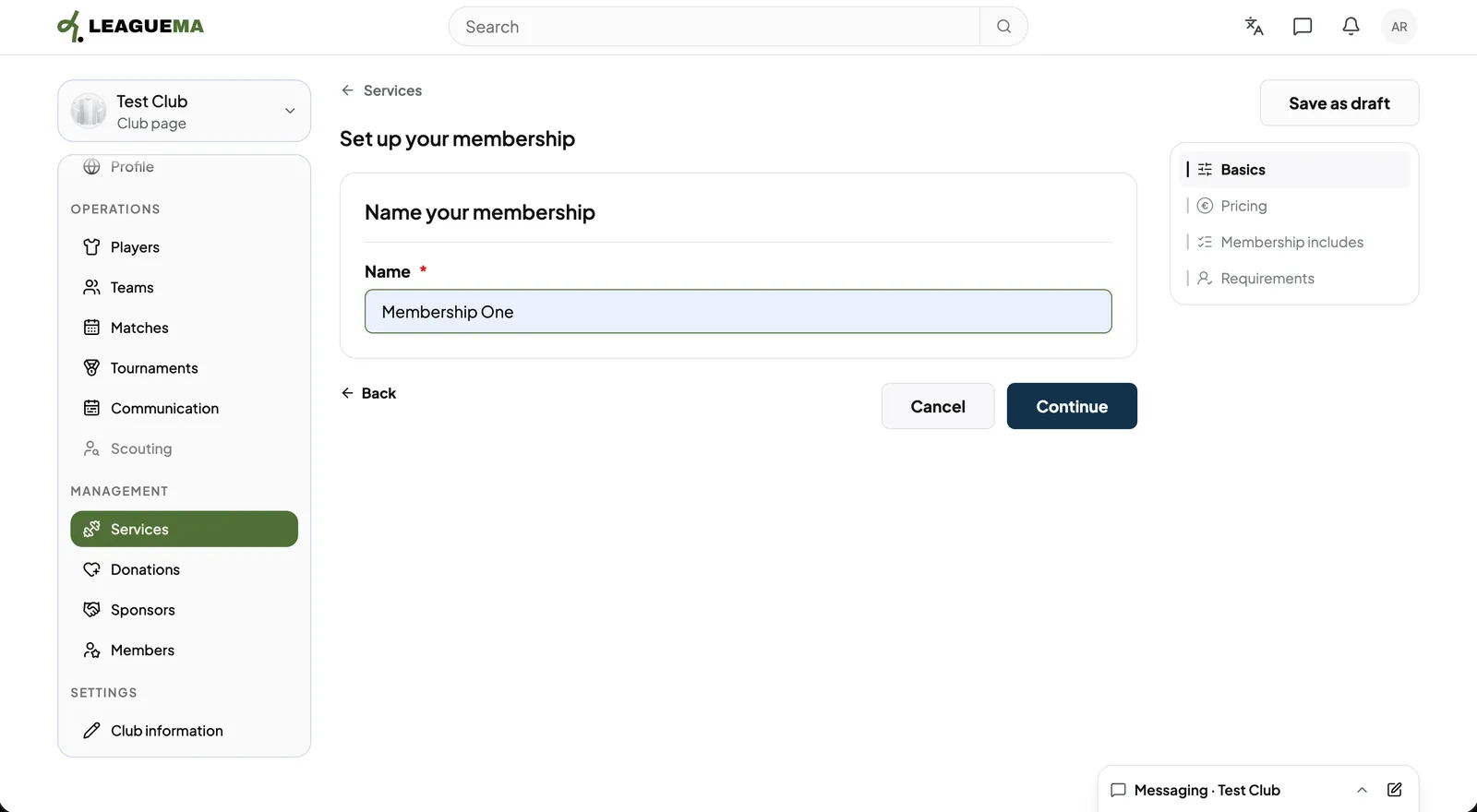
1. Opening Services Click “Services” under “Management” and click “Add service”.2. Choosing Membership Under “What are you offering?”, click “Membership” and click “Continue”.3. Deciding on a group chat Choose “Yes, create a group chat” to add every member automatically, or “No group chat”. Members are added and removed with their membership.4. Naming the membership Enter the “Name” and click “Continue”.
Pricing
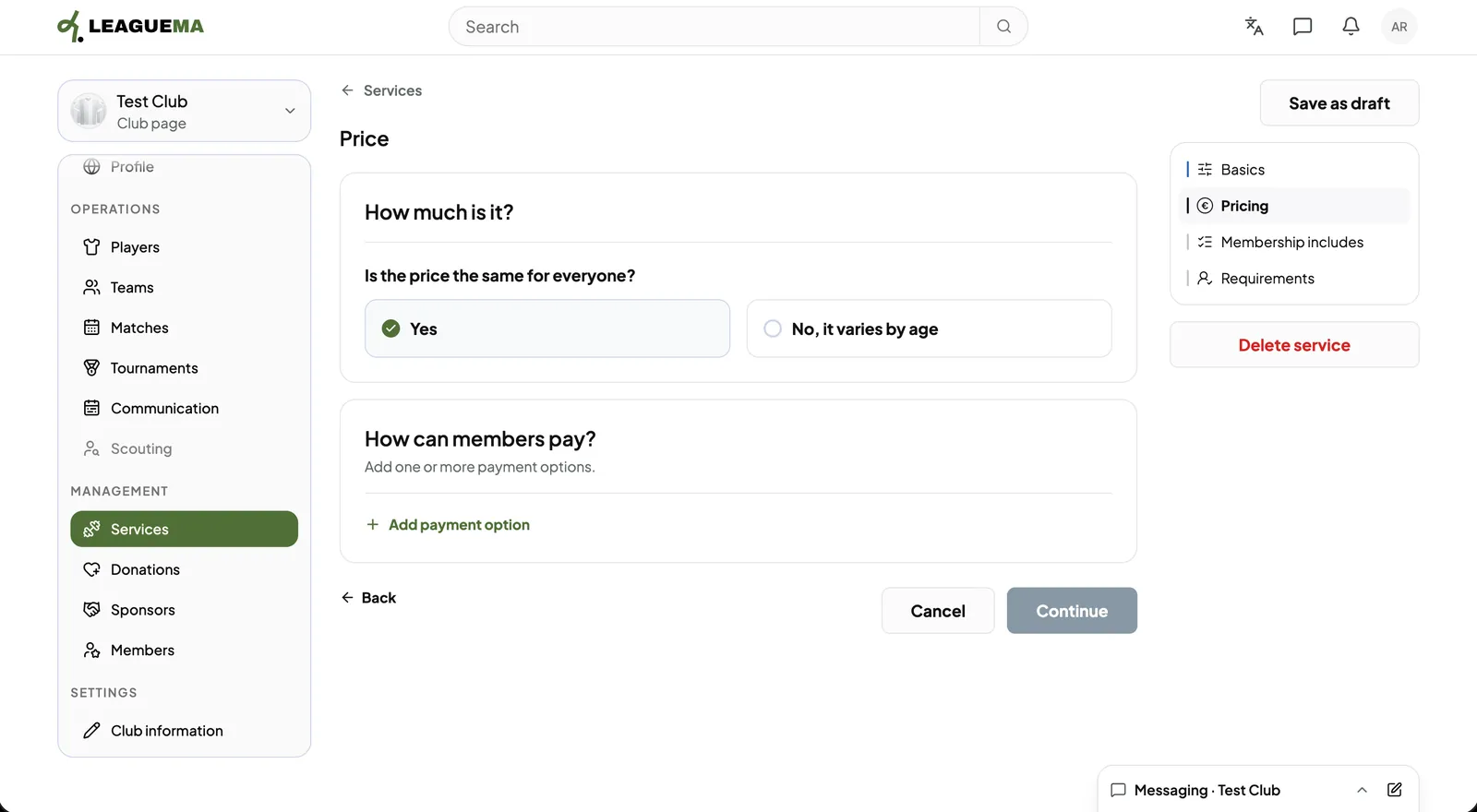
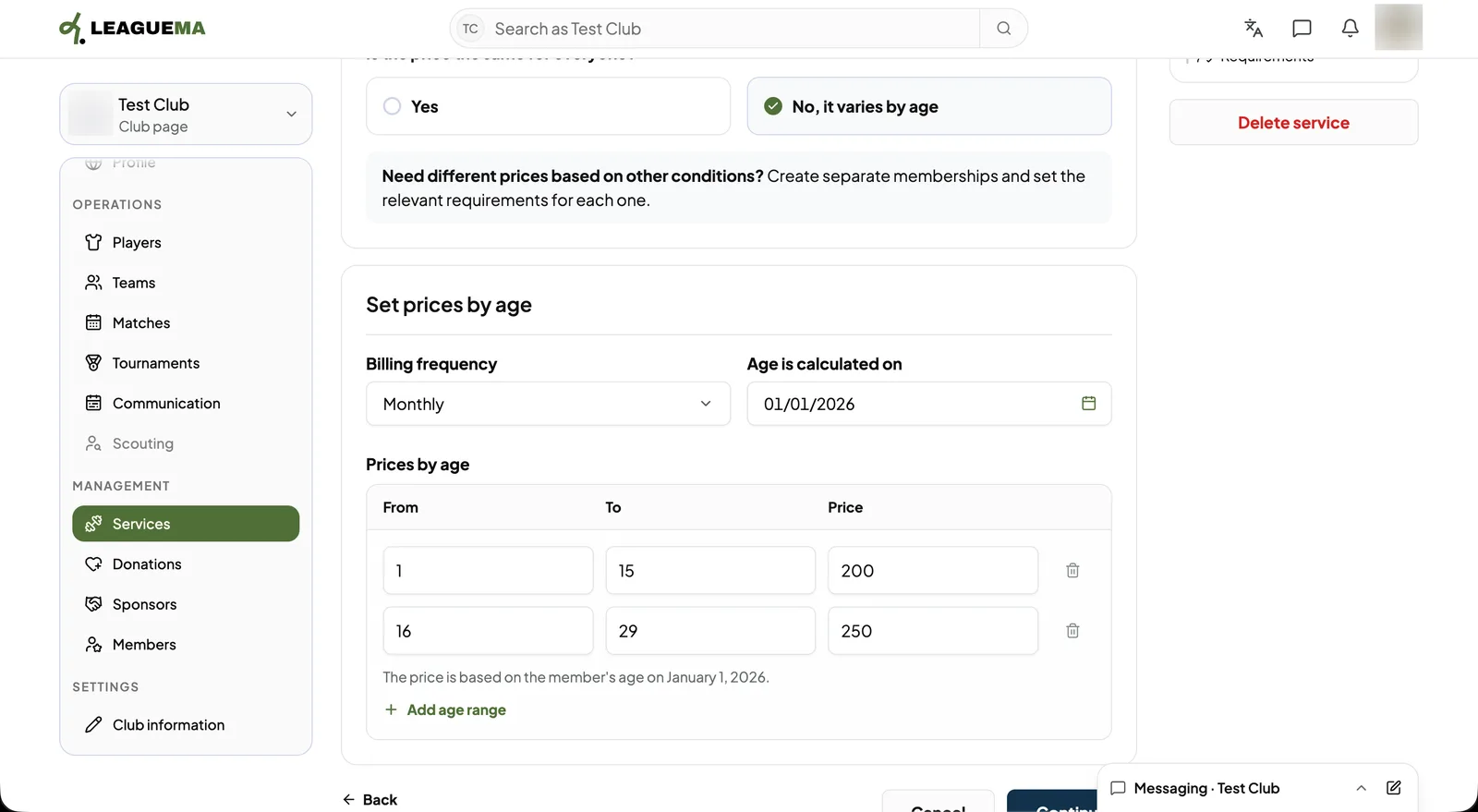
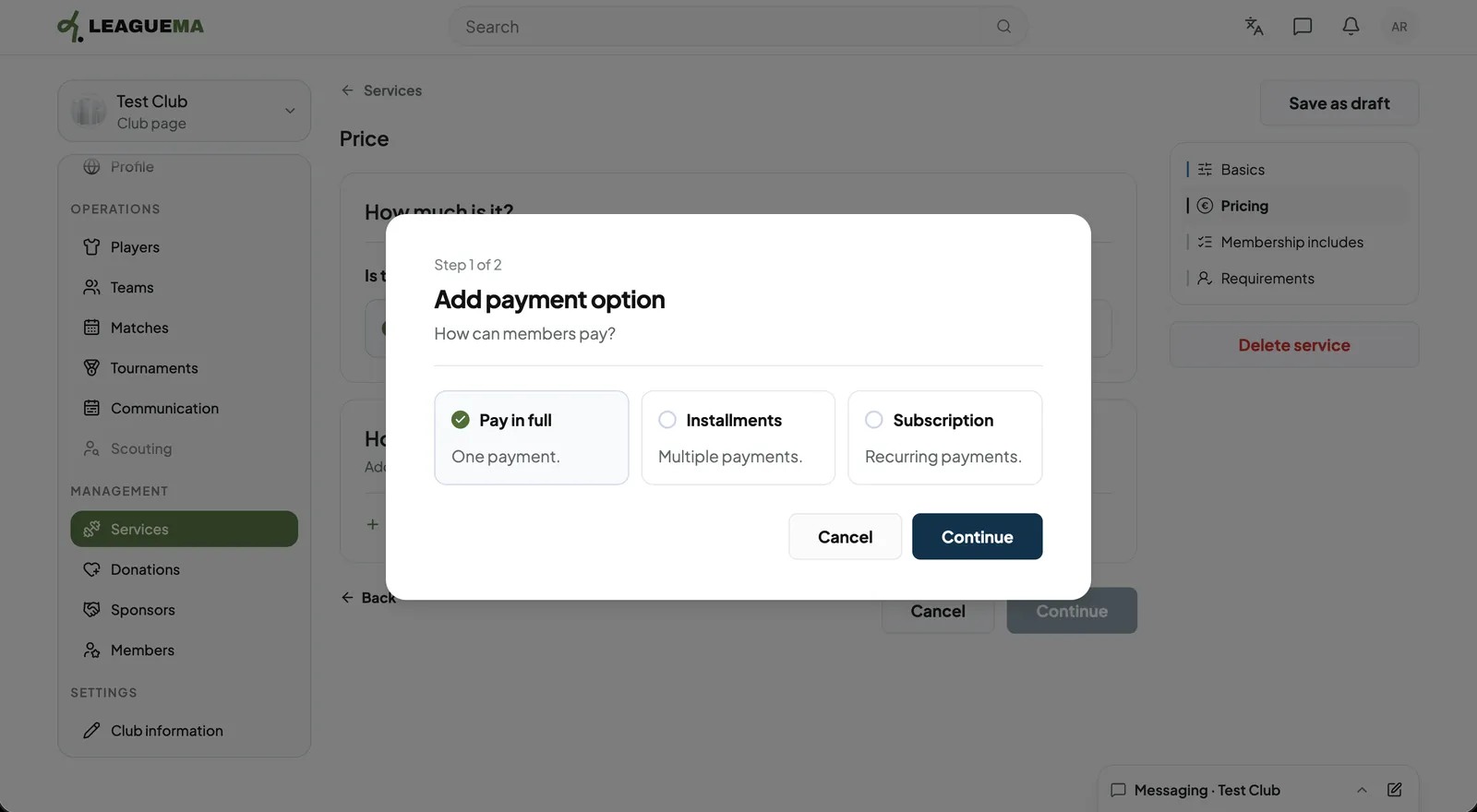
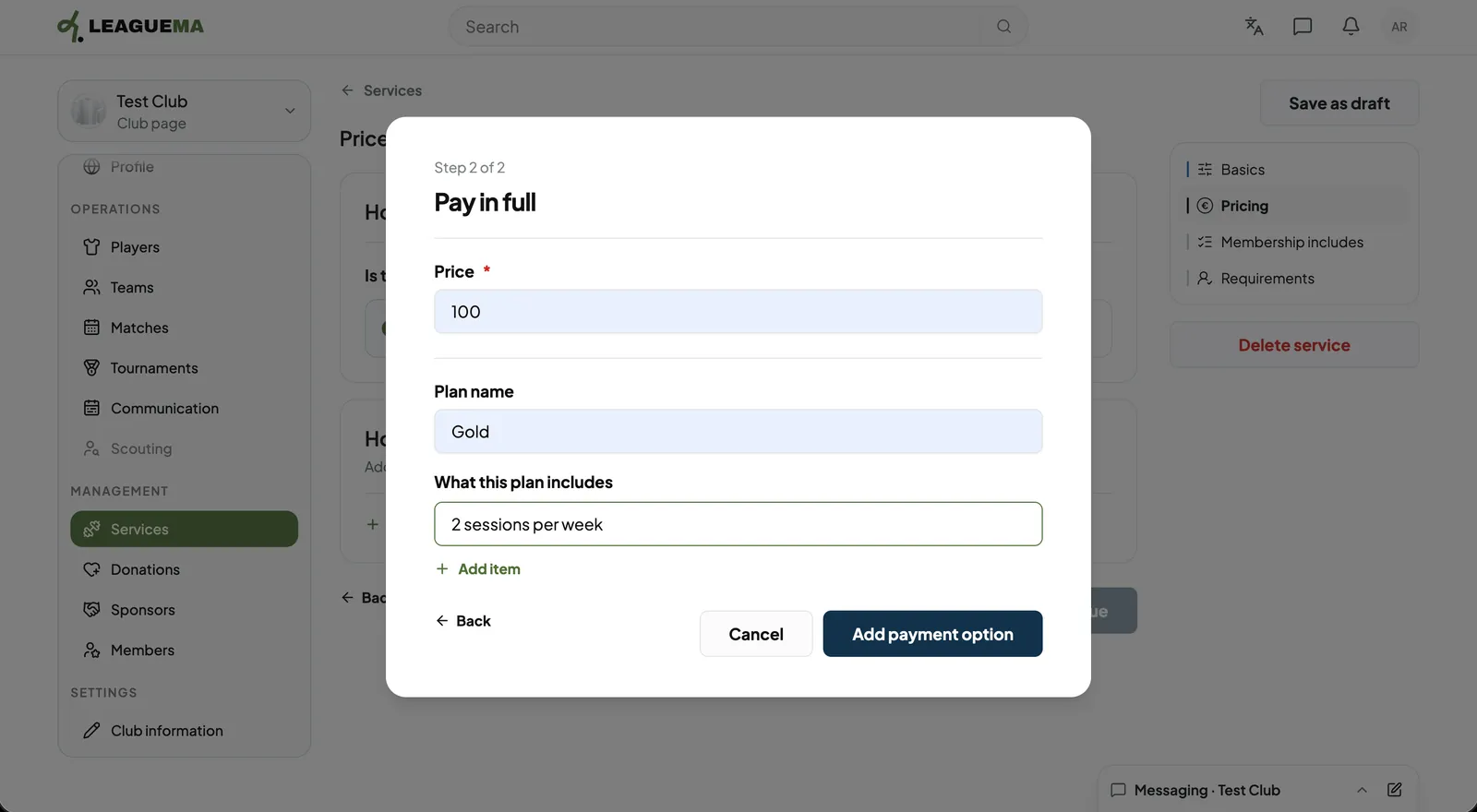
1. Setting whether the price varies Under “Is the price the same for everyone?”, click “Yes” or “No, it varies by age”.2. Setting prices by age For prices by age, choose the “Billing frequency” and the date on which age is calculated, then enter each age range with its price. “Add age range” adds a row.3. Adding a payment option Click “Add payment option” and choose “Pay in full”, “Installments” or “Subscription”.4. Describing the plan Enter the “Price”, the “Plan name” and what the plan includes, then click “Add payment option”. Then, click “Continue”.
Inclusions
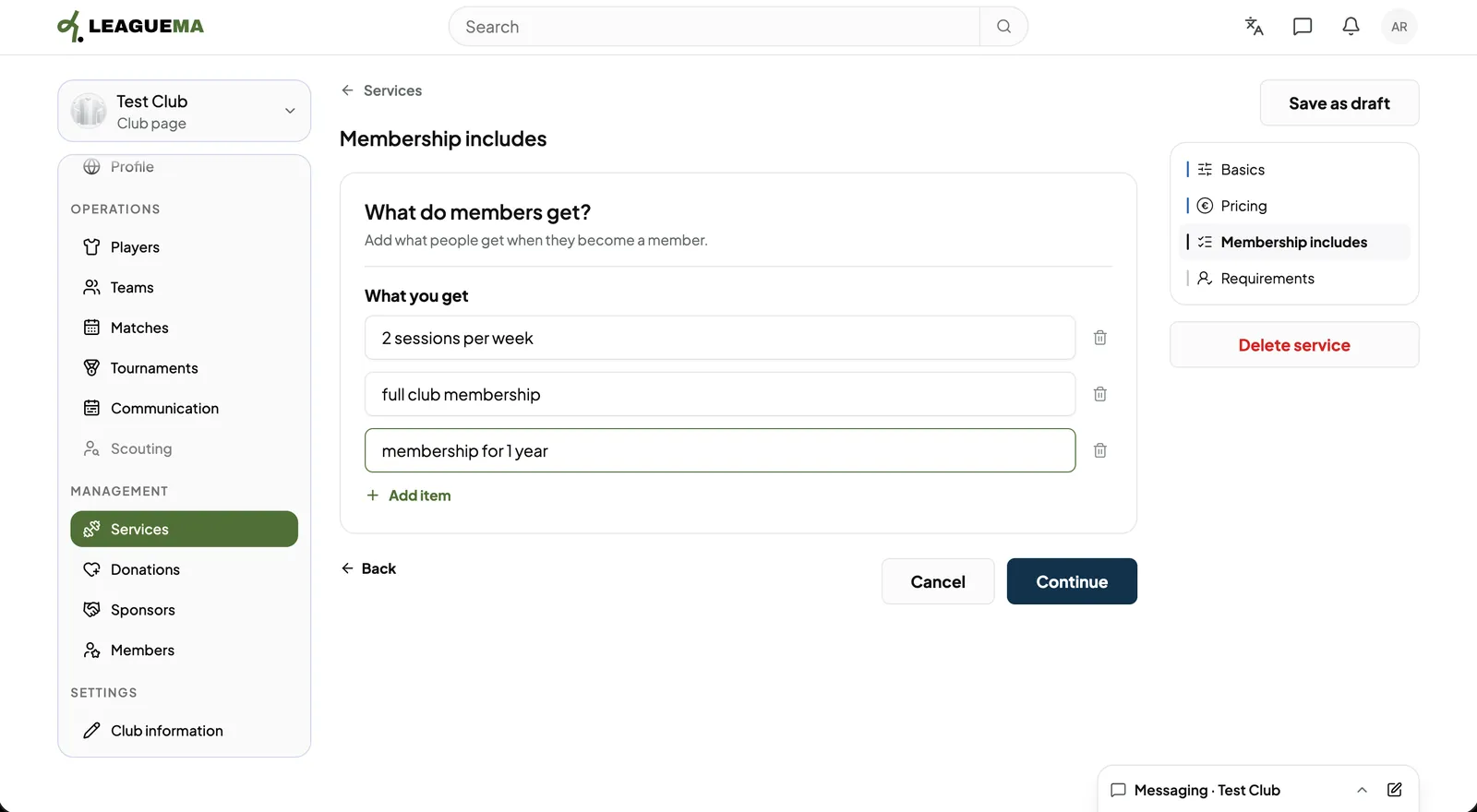
1. Listing what members get Under “What do members get?”, enter each benefit. “Add item” adds a line. Click “Continue”.
Requirements
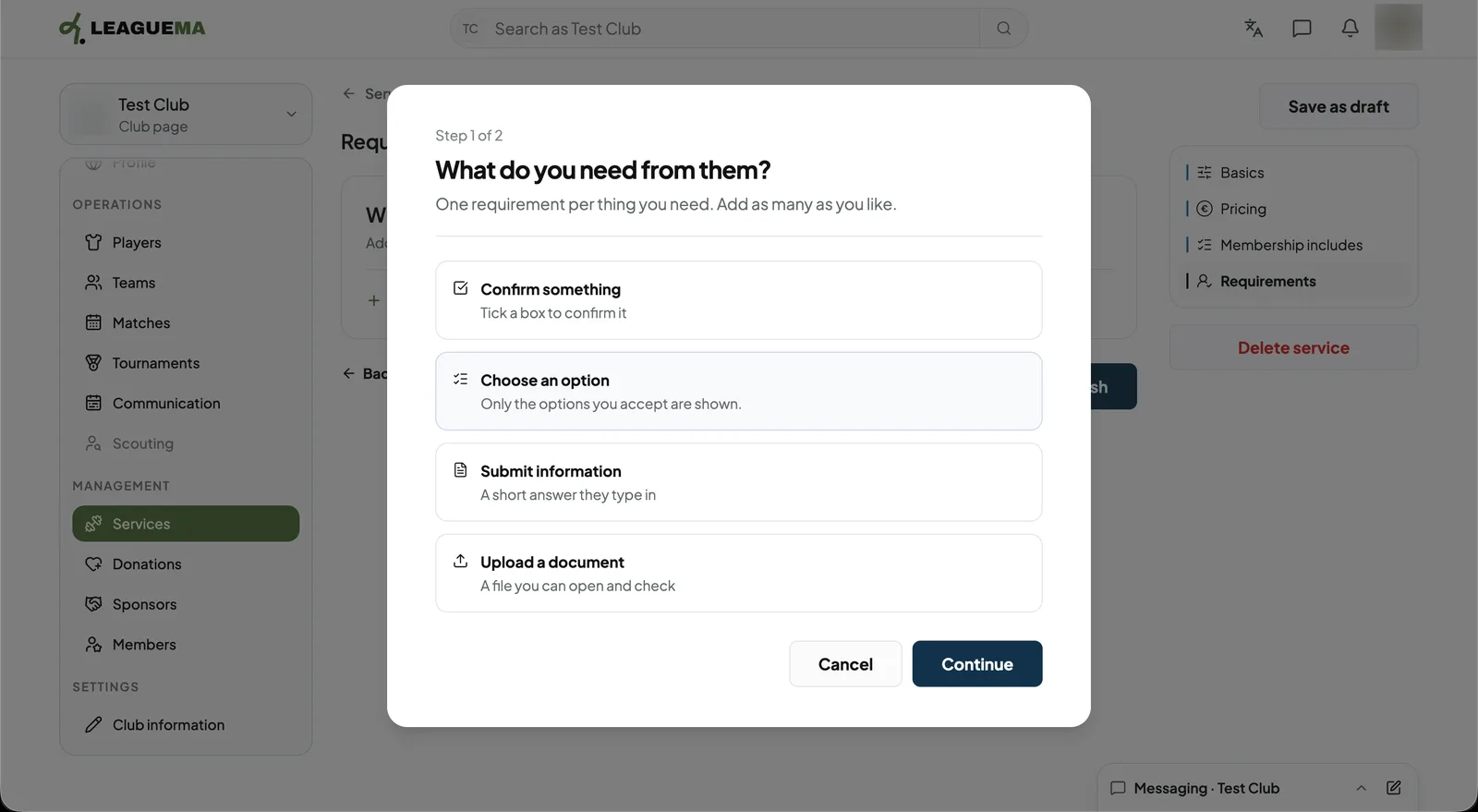
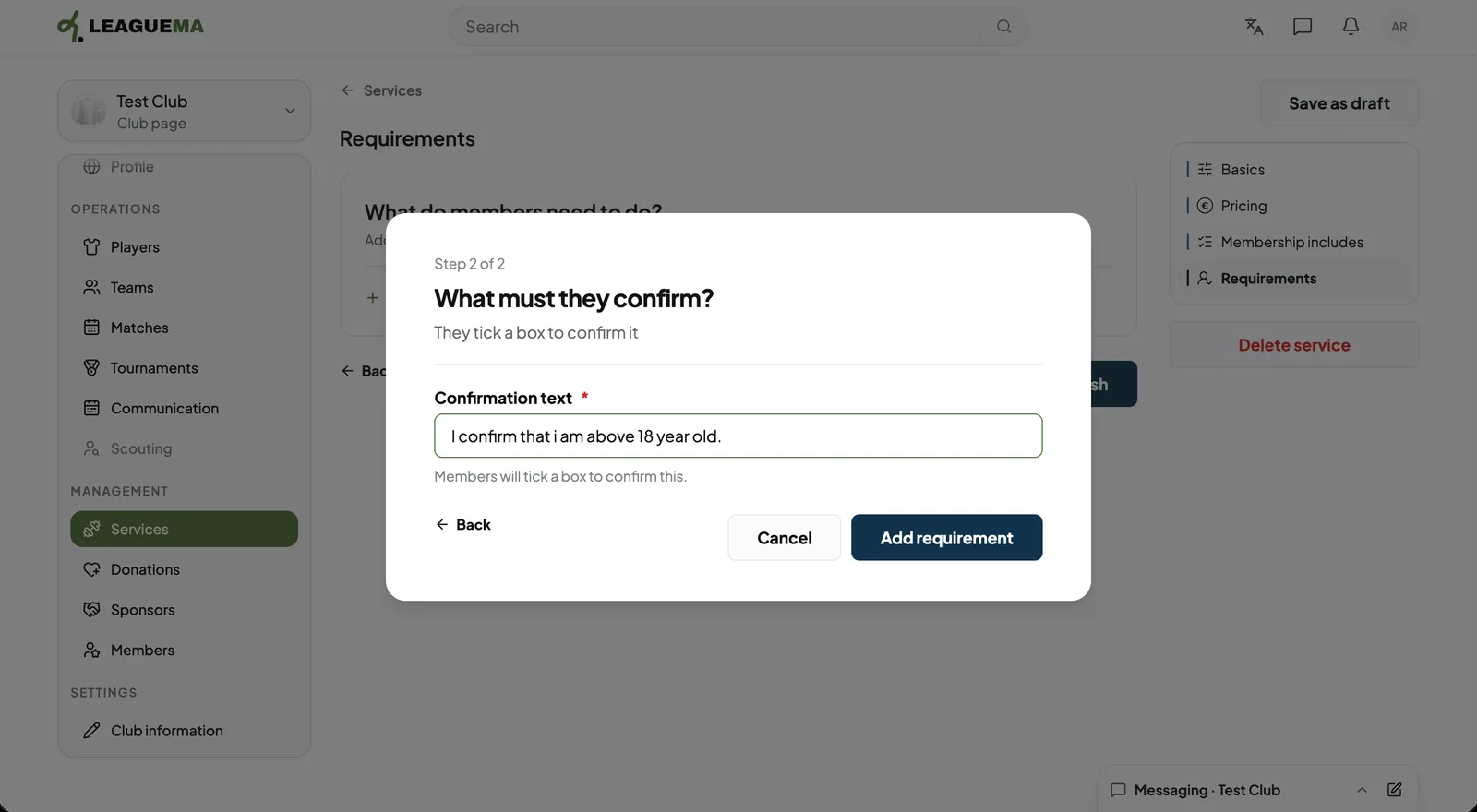
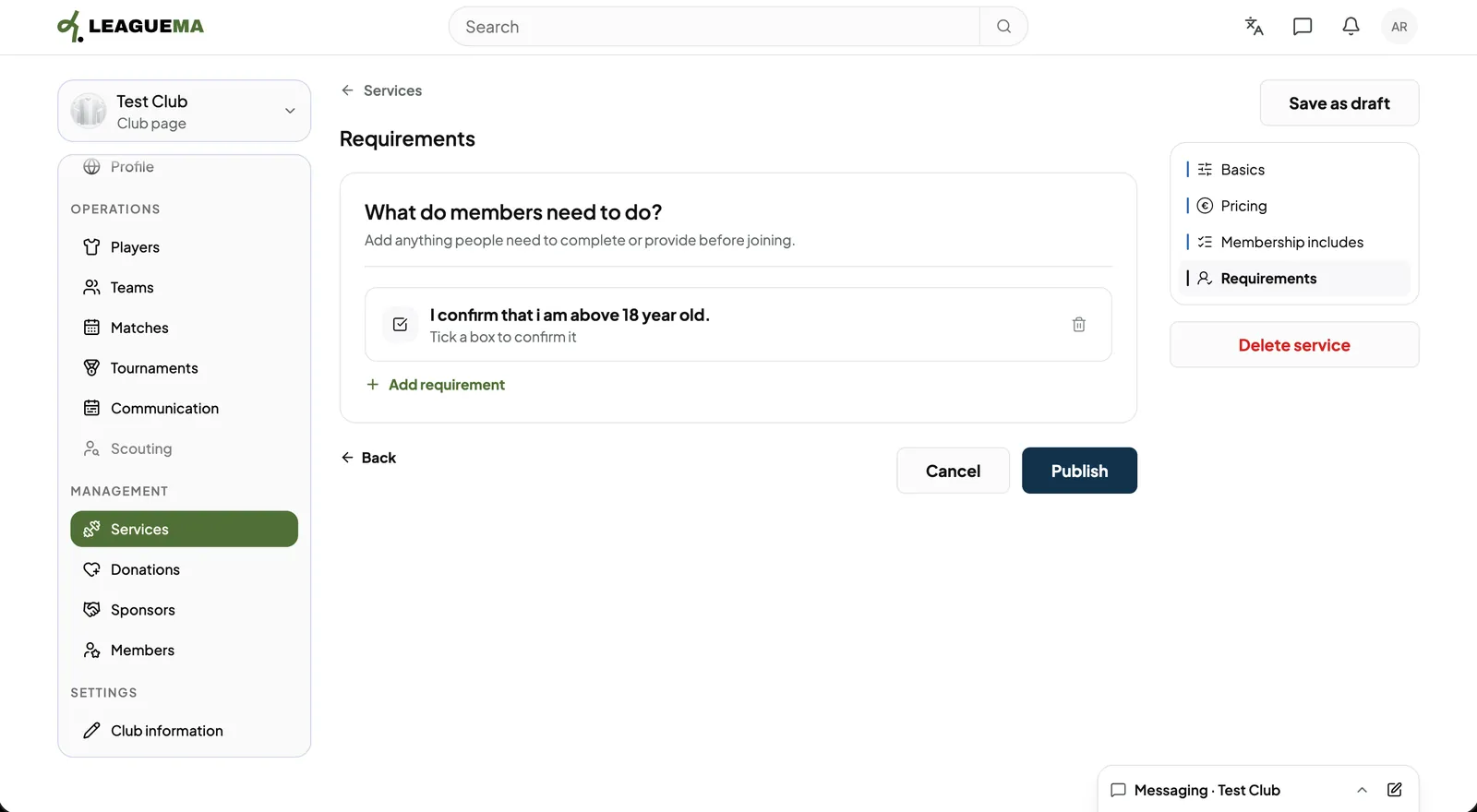
1. Choosing a requirement type Click “Add requirement”, then “Confirm something”, “Choose an option”, “Submit information” or “Upload a document”.2. Entering the requirement For a confirmation, enter the text members tick (for example, an age declaration) and click “Add requirement”.3. Publishing Review the requirements and click “Publish”.
Result
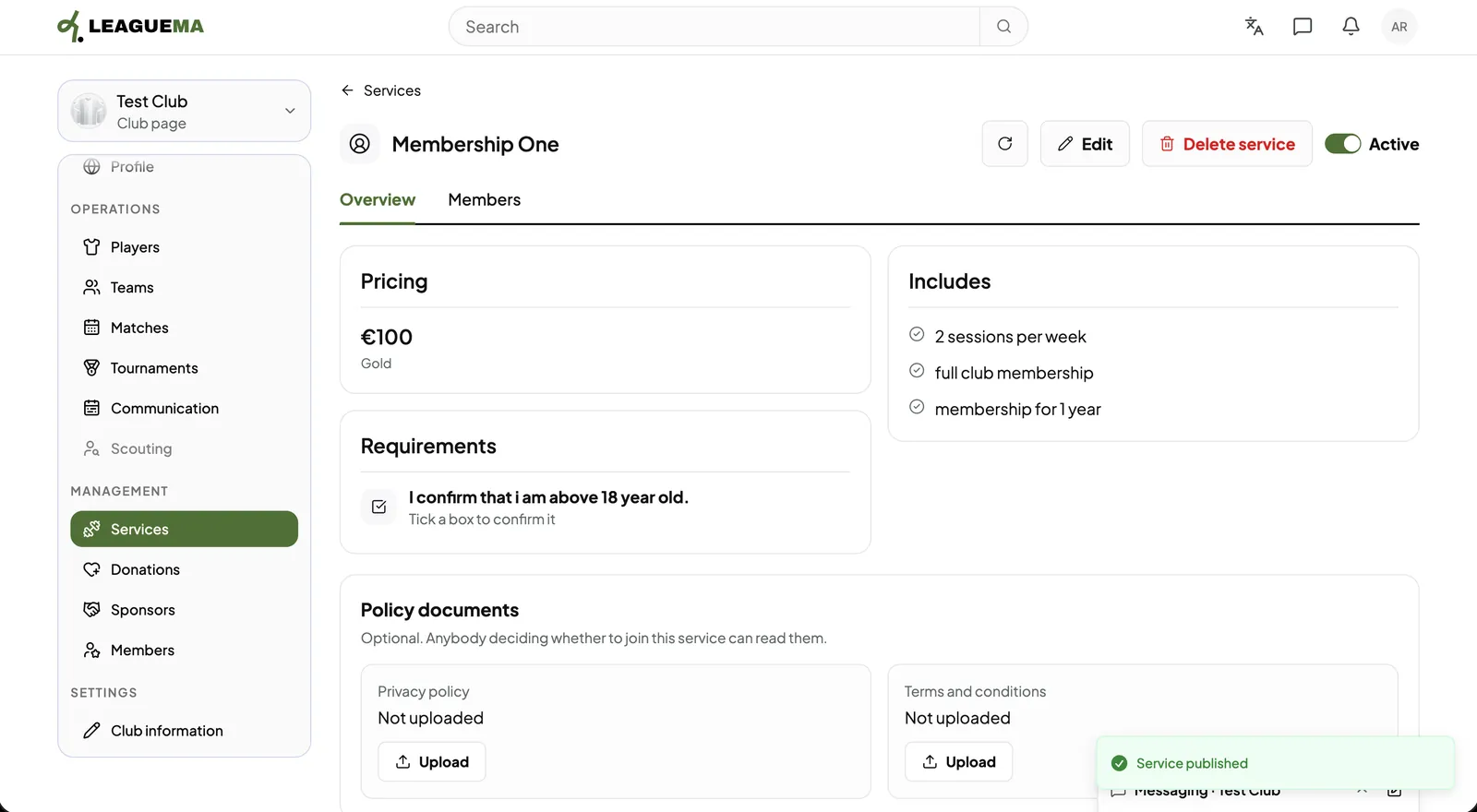
1. The published membership The service page opens with its prices, inclusions and legal documents. The “Active” switch hides the service from new members without affecting existing ones.