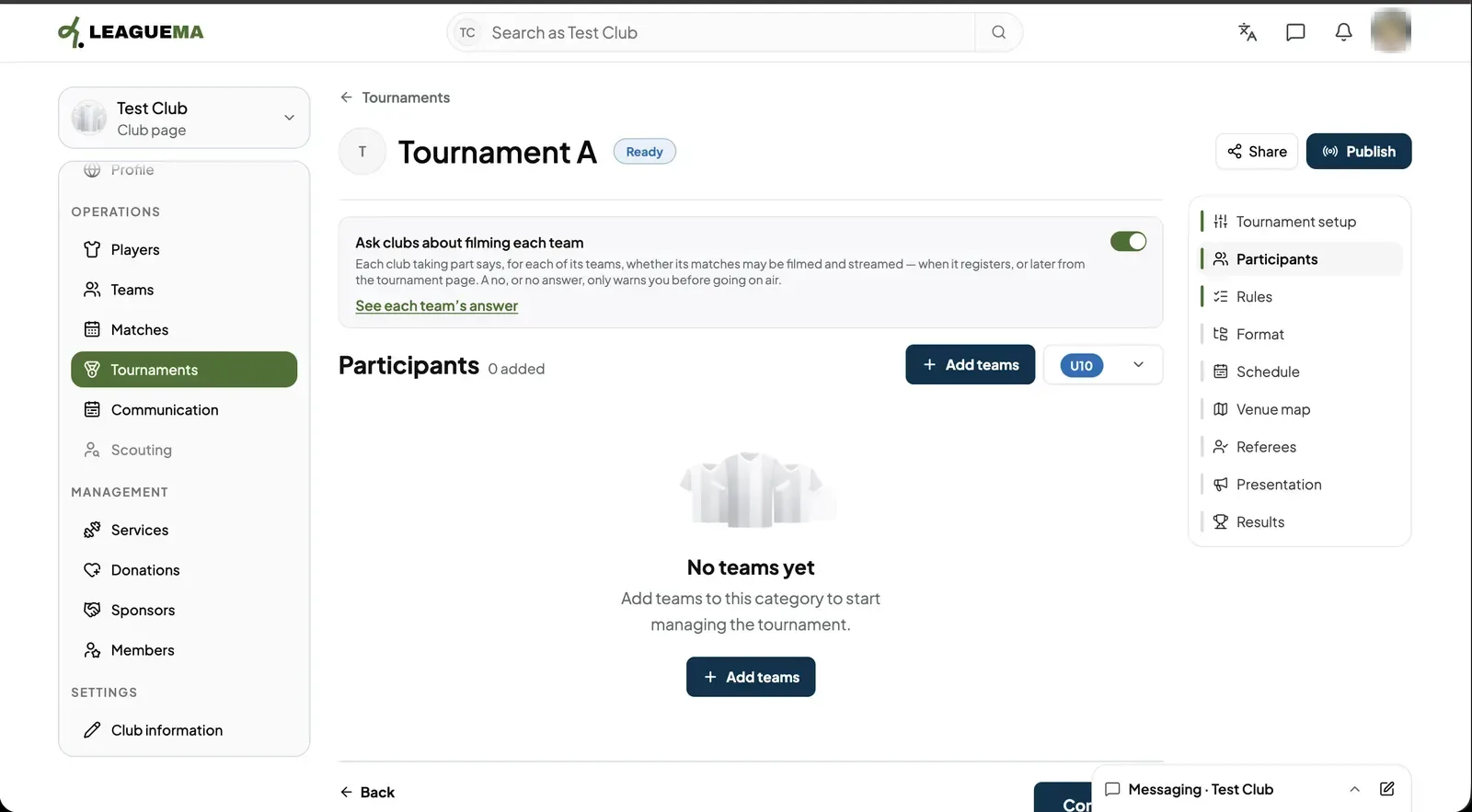
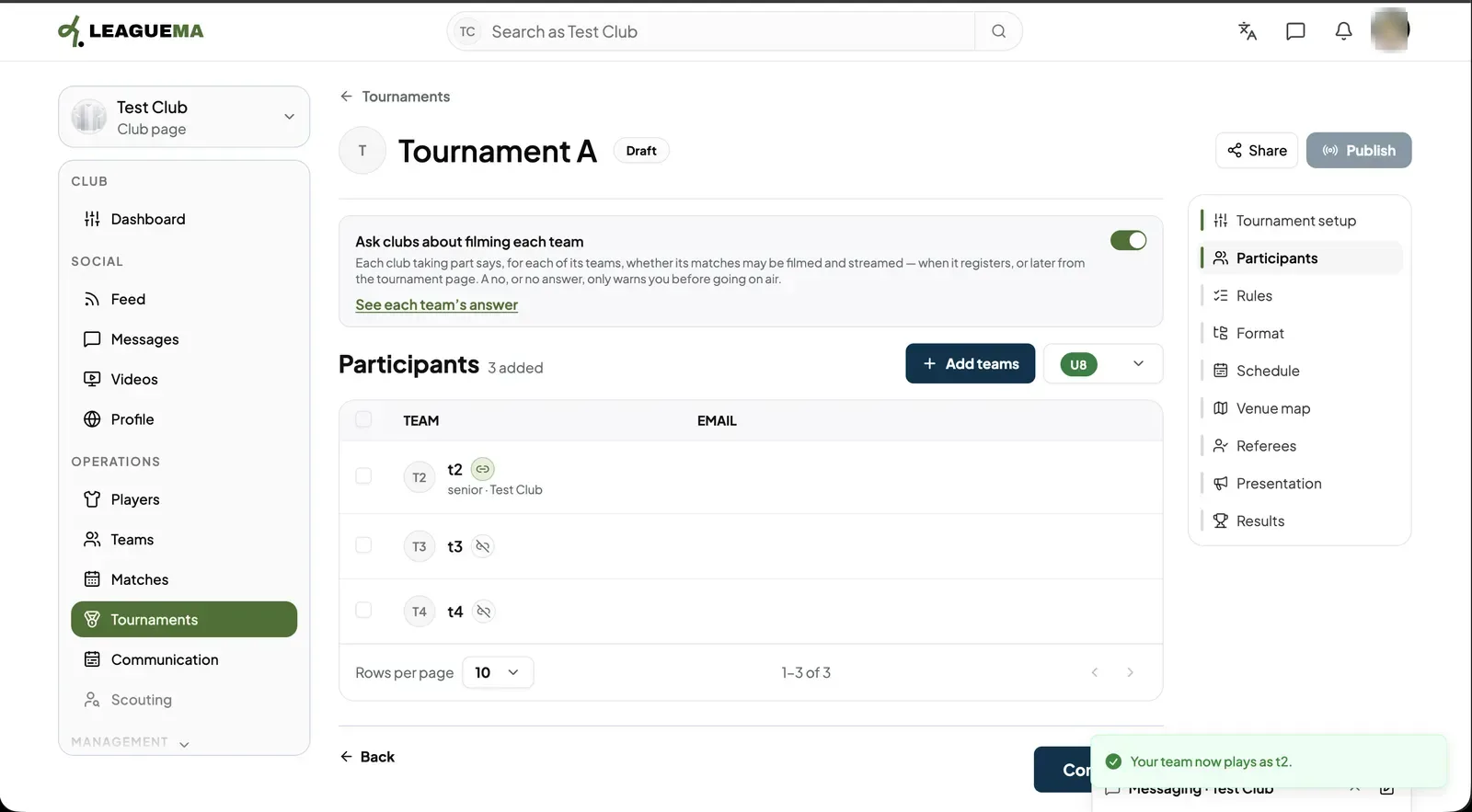
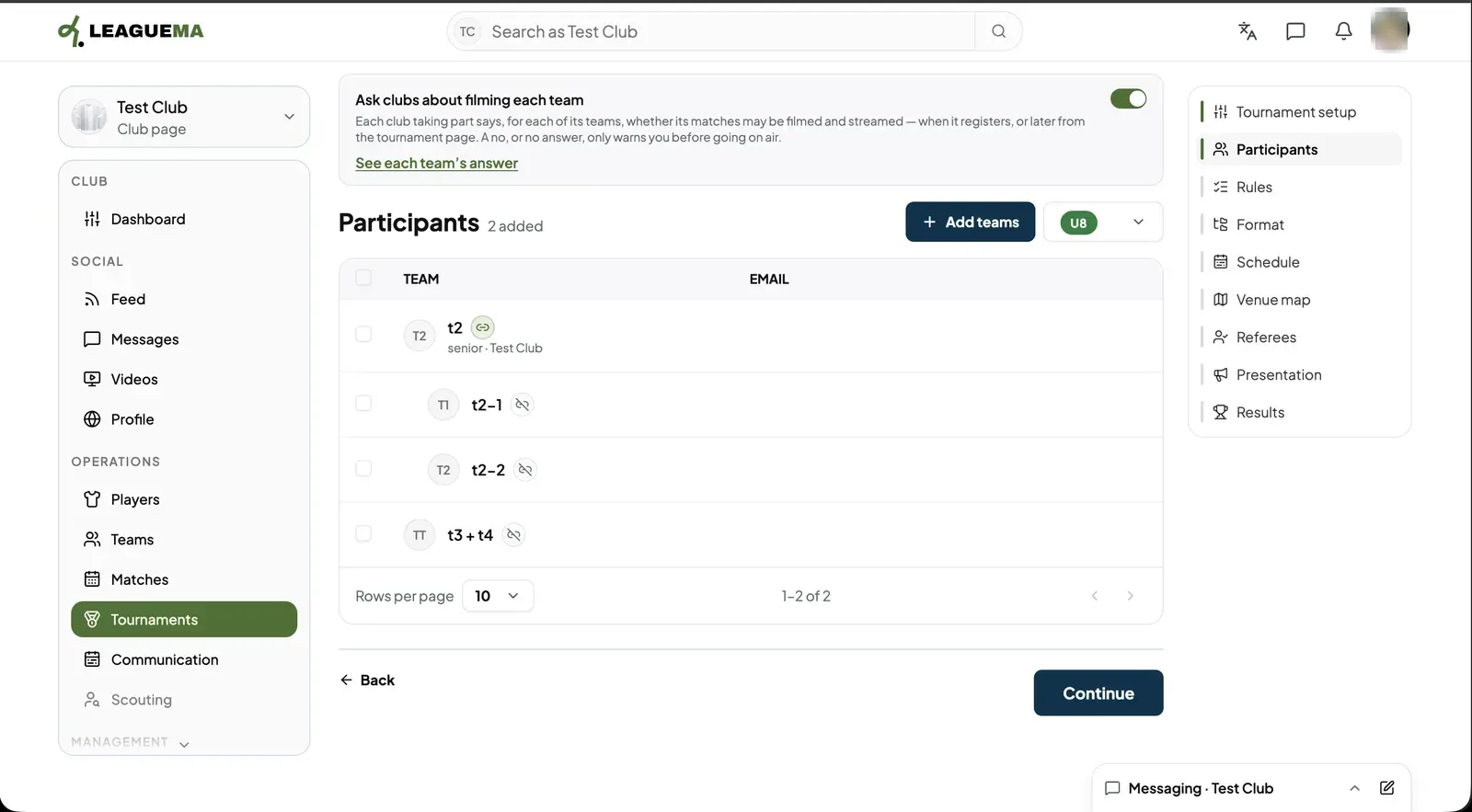
Participants are the teams that play in a category. You use this page to add them, invite the clubs that own them and place your own club's teams. A participant can be just a name, or carry an email that receives an invitation to register a real team. Every category has its own list.
Opening Participants
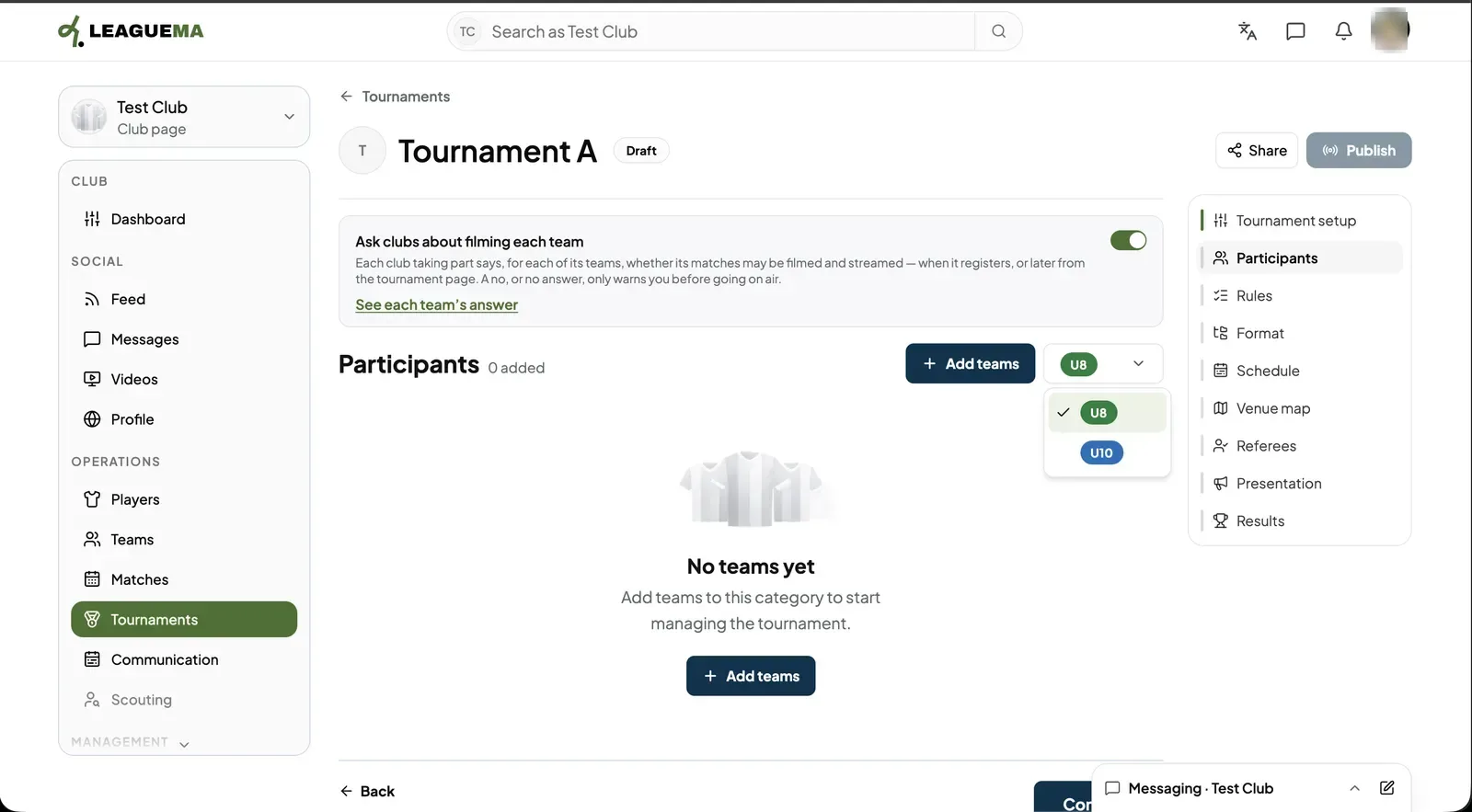
1. Choosing the category Click “Participants” in the right-hand menu and pick the category in the selector beside “Add teams”. “Ask clubs about filming each team” asks every club, team by team, whether its matches may be filmed and streamed; a no never blocks registration, it only warns you before going on air.
Adding one team
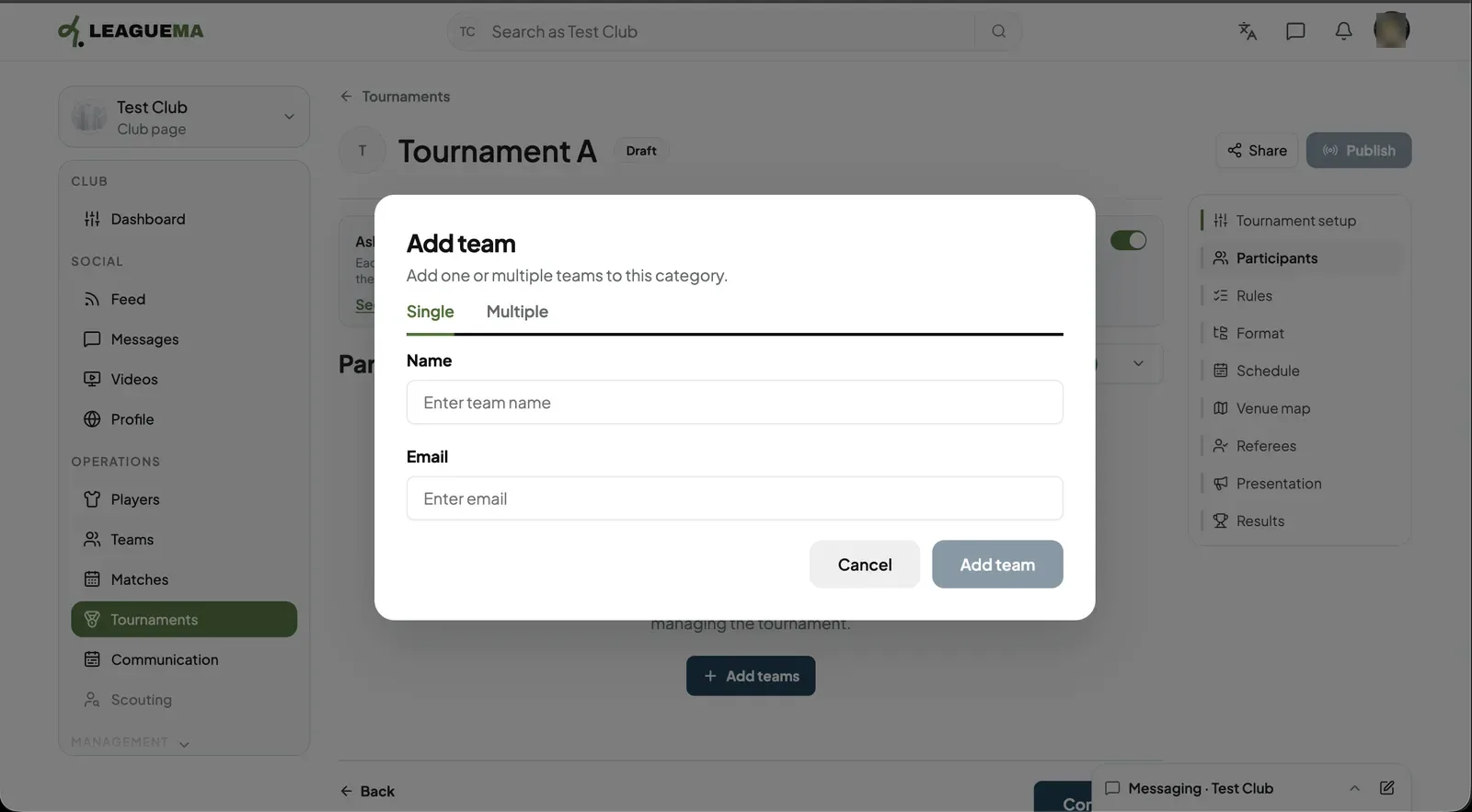
1. Entering a single team Click “Add teams”. On the “Single” tab enter the team “Name” and, if you want to invite its club, its “Email”. Click “Add team”.
Adding several teams
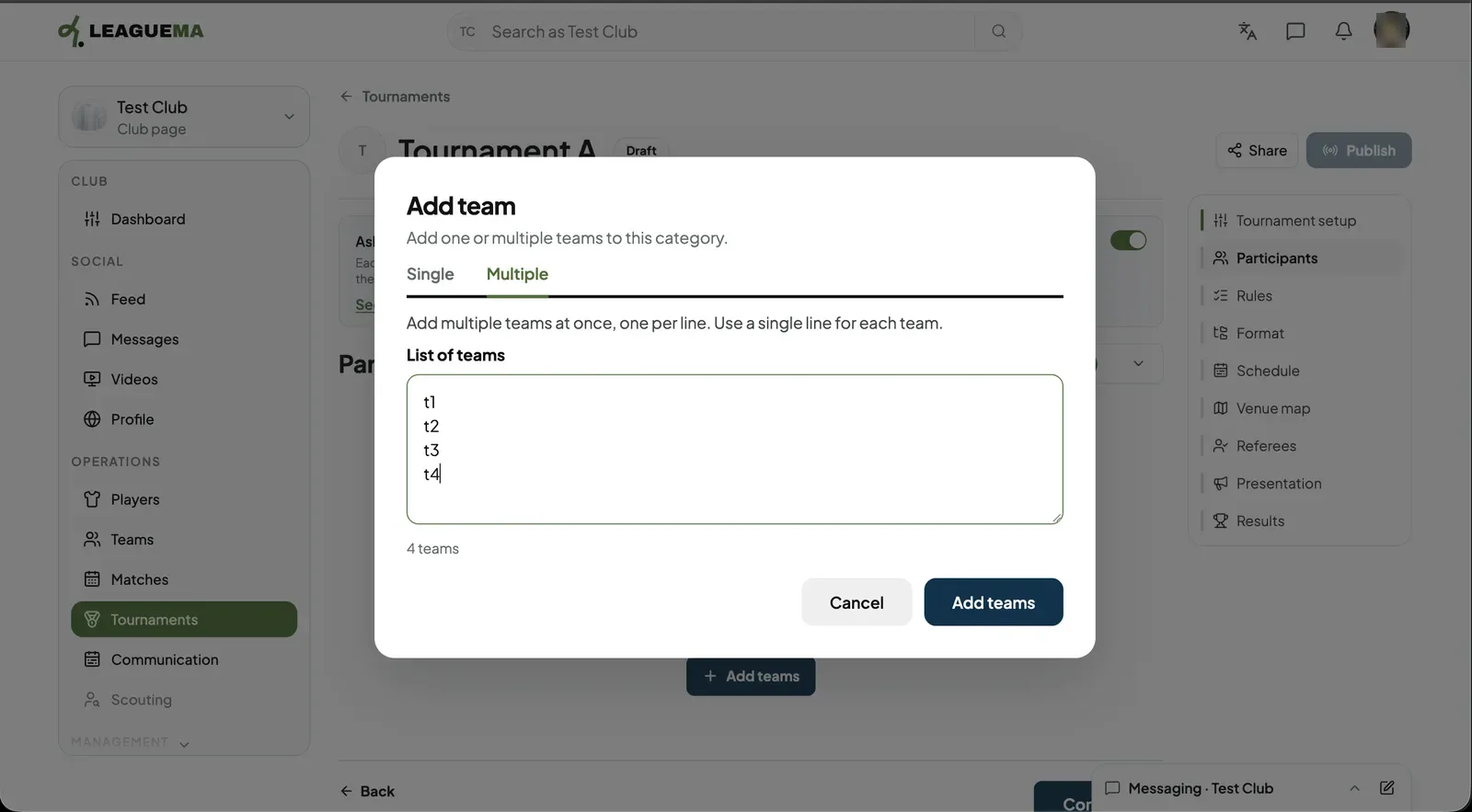
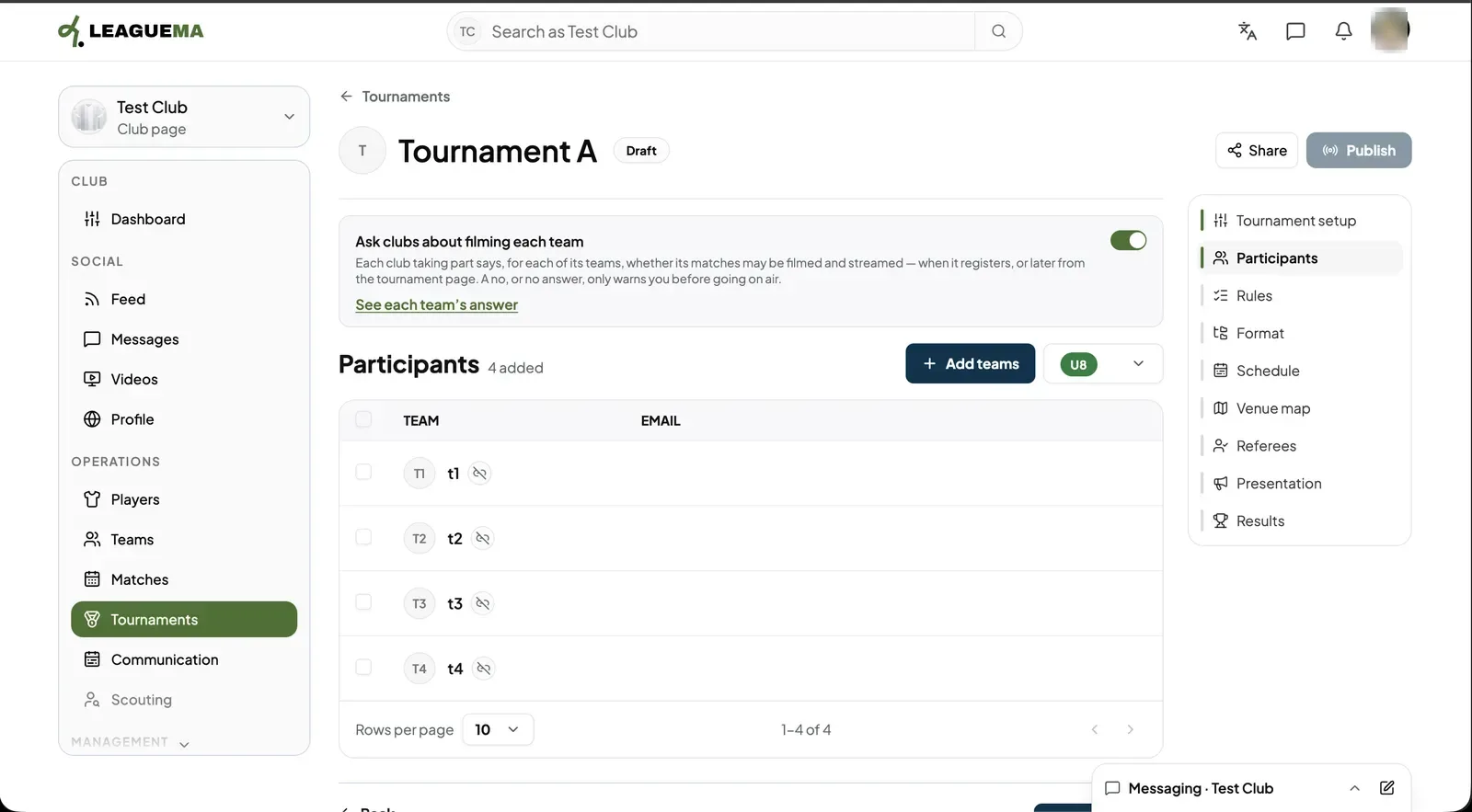
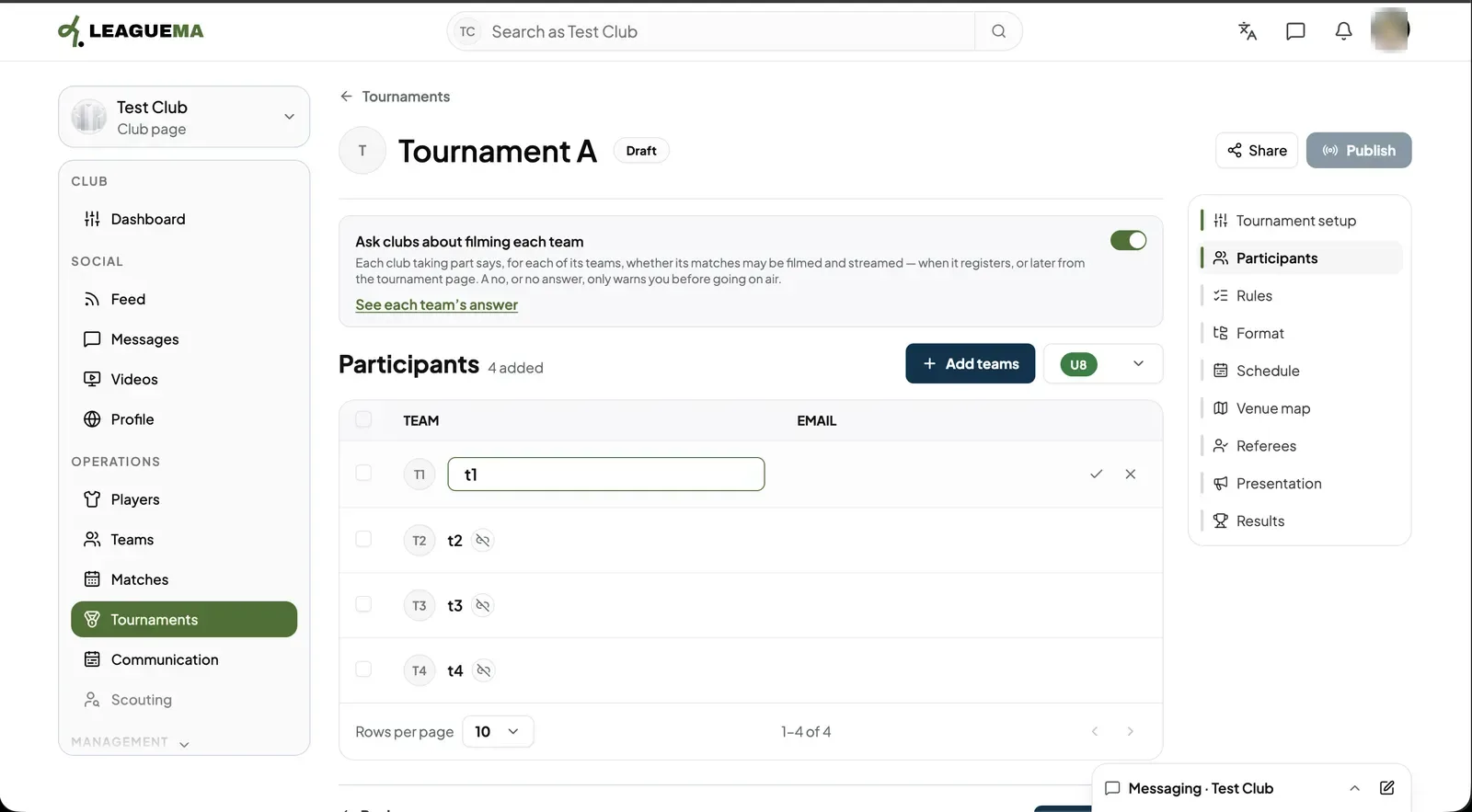
1. Entering one team per line On the “Multiple” tab type one team name per line in “List of teams”. The counter below shows how many teams you entered. Click “Add teams”.2. Result The teams appear in the table with the number added beside the title. Each row has its own actions on the right.
Switching category
1. Picking another category Open the category selector and click another category. Its list is separate, so it starts empty until you add teams to it.
Managing a team
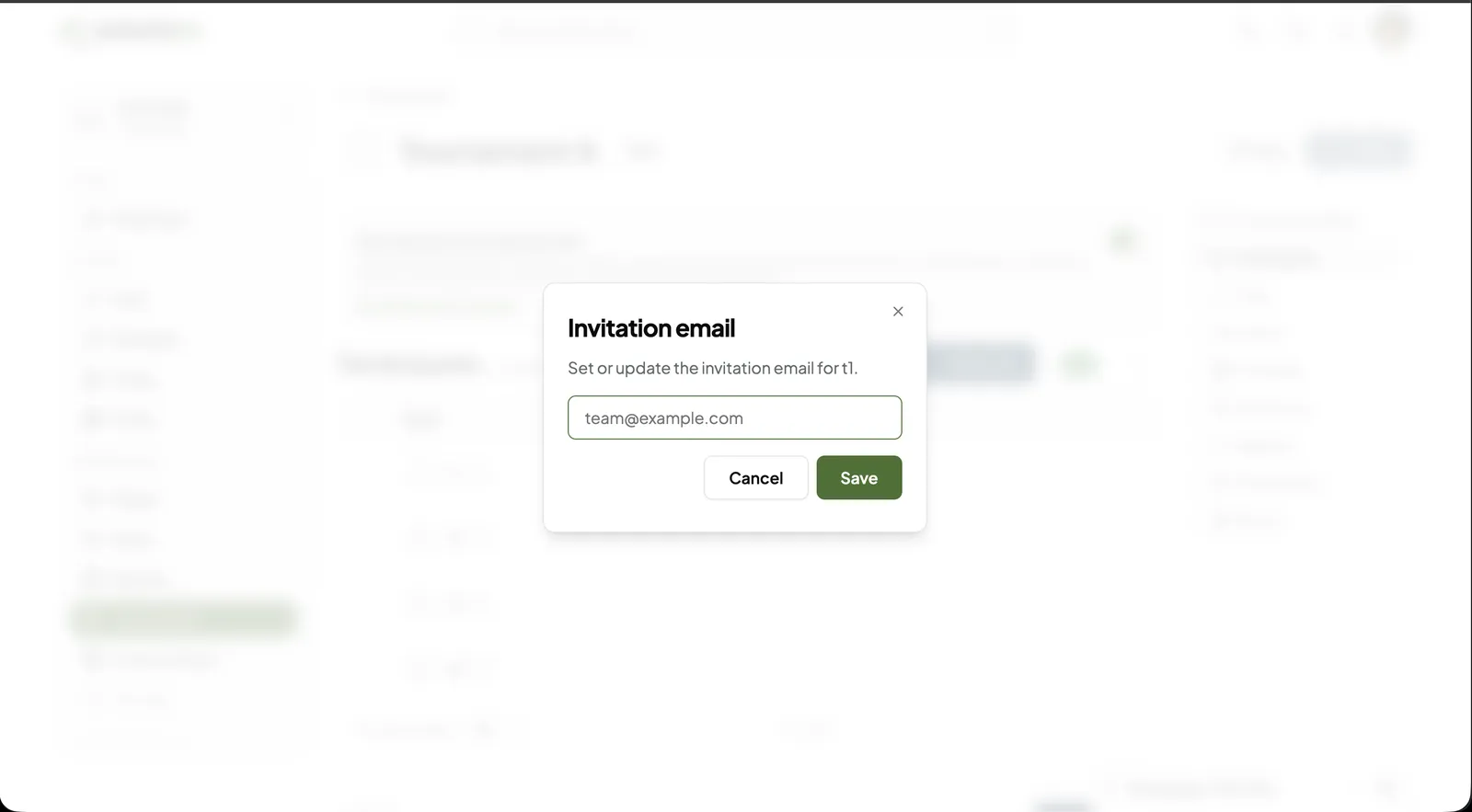
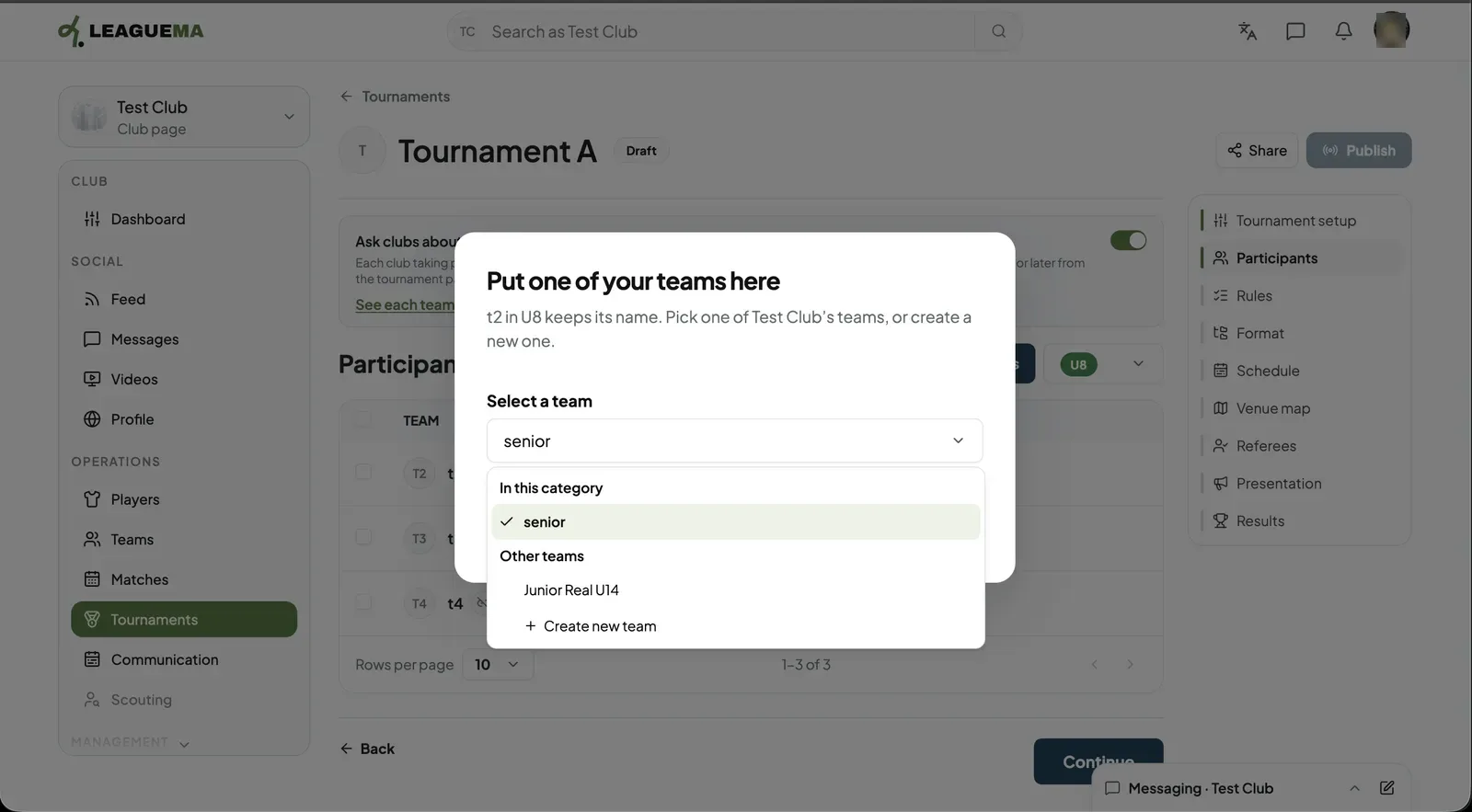
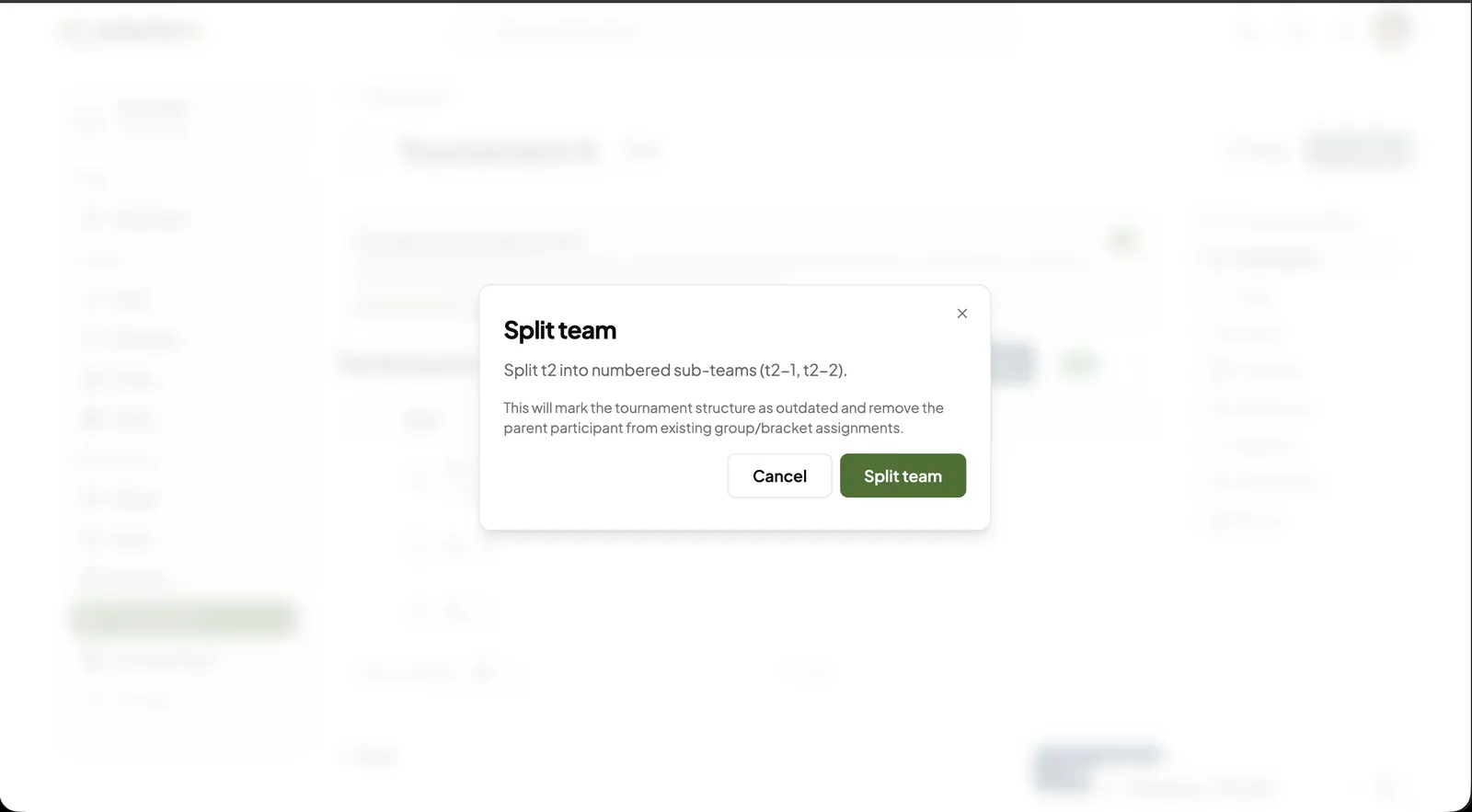
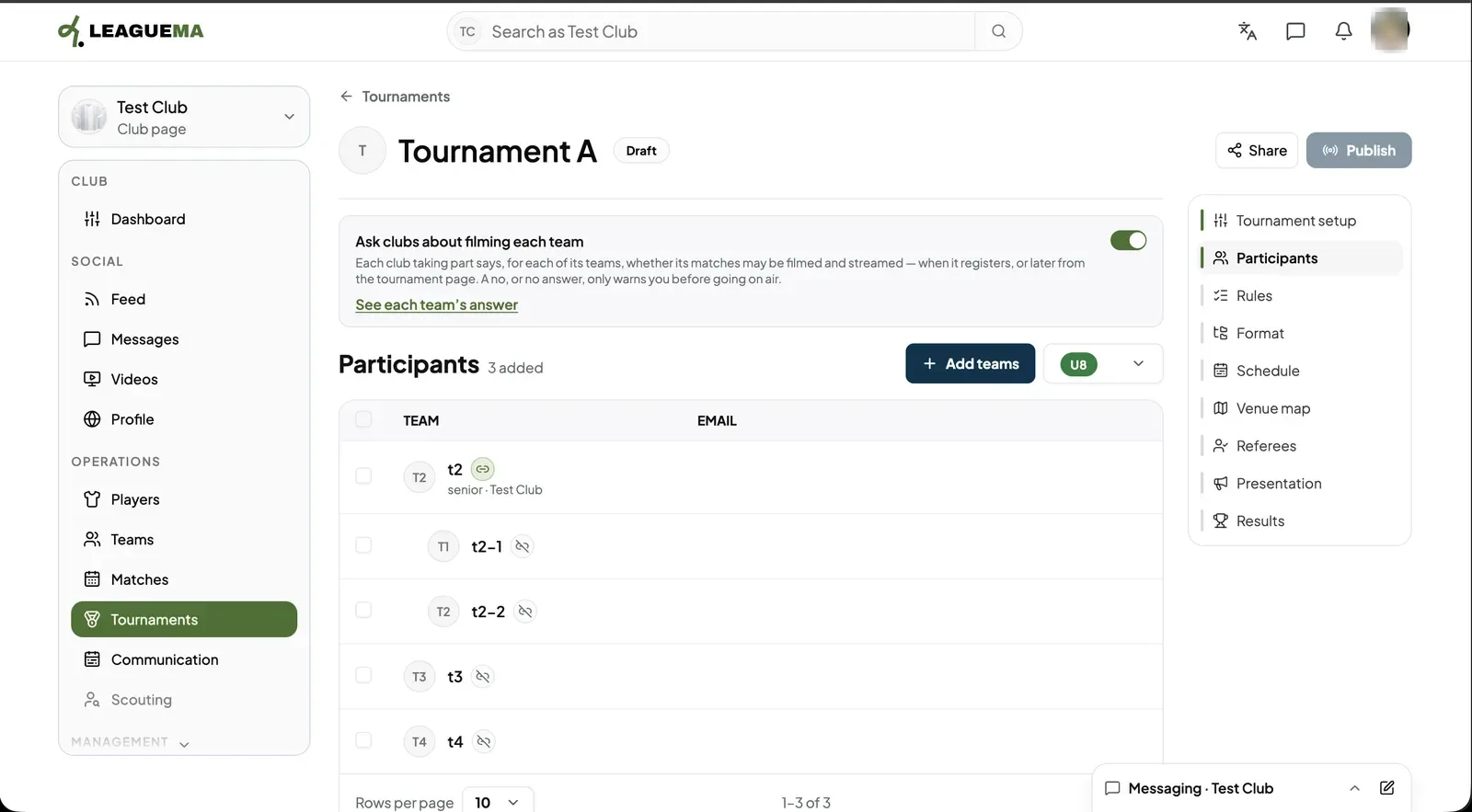
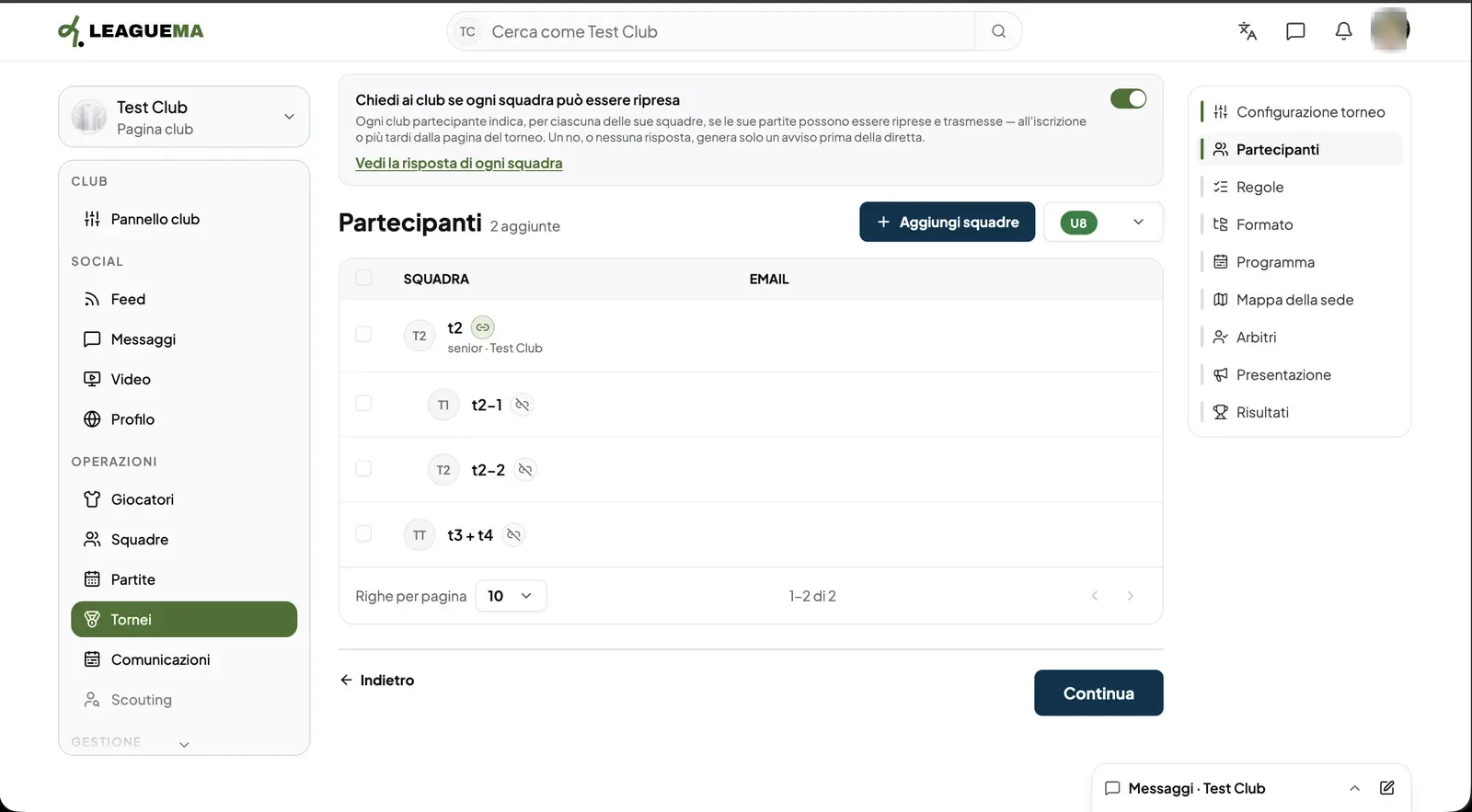
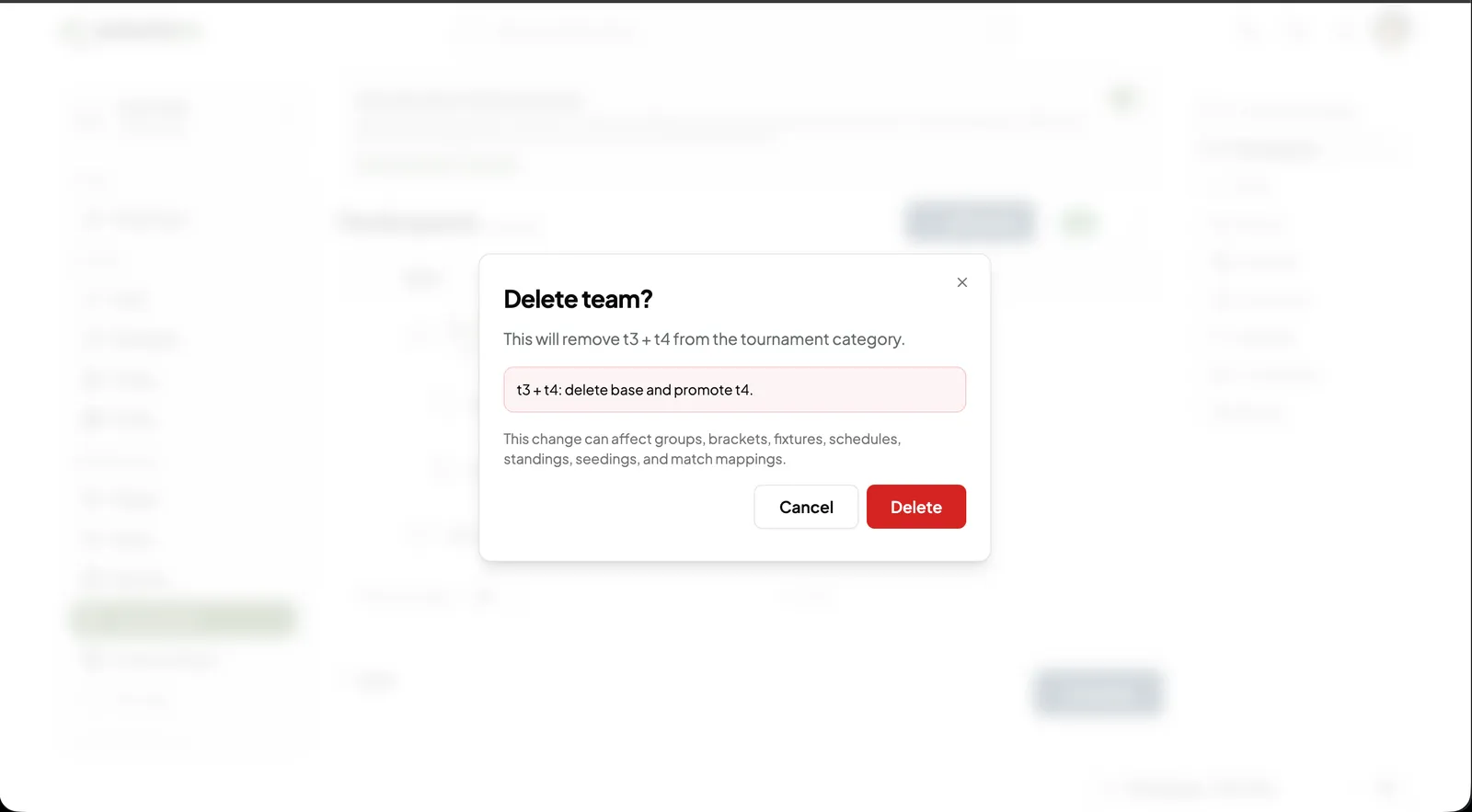
1. Renaming Hover the row and click the pencil (“Rename”). Type the new name and confirm with the tick.2. Sending an invitation Click the envelope (“Send invitation”). Enter or update the club's email and click “Save”. The club receives a link to register its team in that place.3. Putting one of your teams in the place Click “Put one of your teams here”. The place keeps its name. Under “Select a team” choose one of your club's teams, or click “Create new team”.4. Result The row now shows your team and club under the place name, and a confirmation appears.5. Splitting a team To turn one place into numbered sub-teams (for example t2-1 and t2-2), click the split action and then “Split team”. The tournament structure is marked as outdated and the original place is removed from its groups and brackets.6. Result of the split The sub-teams are listed under the original team.7. Merging teams Click the merge action, tick the teams of the current category to join and click “Merge teams”. The team you started from is ticked already; you can untick it.8. Result of the merge The merged teams appear as one row, for example "t3 + t4".9. Deleting a team Click the bin and then “Delete”. The dialog warns that the change can affect groups, brackets, fixtures, schedules, standings, seedings and match mappings. Click “Continue” when the list is complete.