Sign in and reset a password

What it is

Signing in opens an account you already have. You use it every time you come back to LeagueMa. The sign-in form sits on the homepage, so there is no separate page to open first.

Sign in
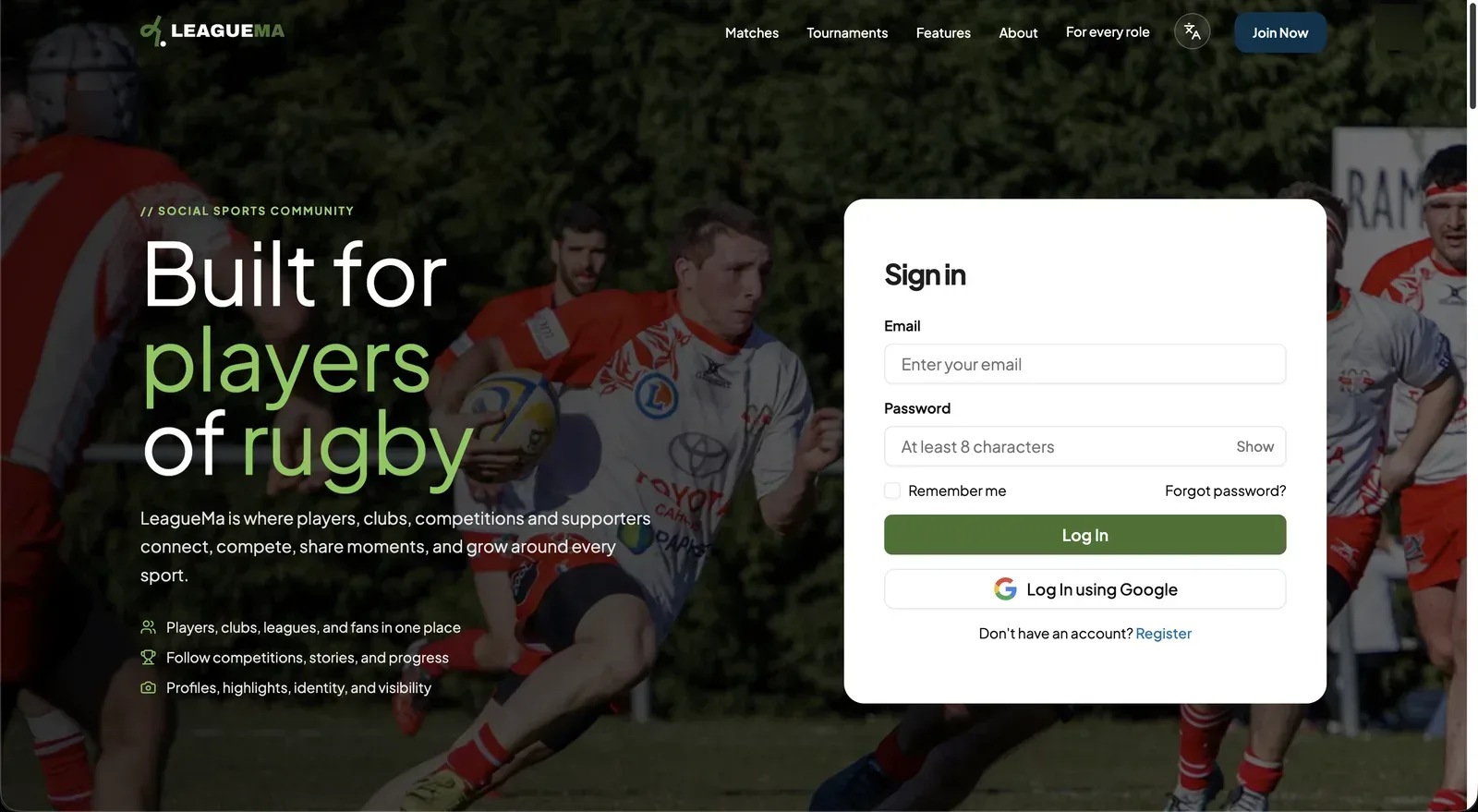
1. Entering the credentials In the “Sign in” form, enter the “Email” and “Password” of the account and click “Log In”. Click “Remember me” to stay signed in on this device, or “Log in using Google” for an account registered with Google.
Sign in and reset a password: Entering the credentials
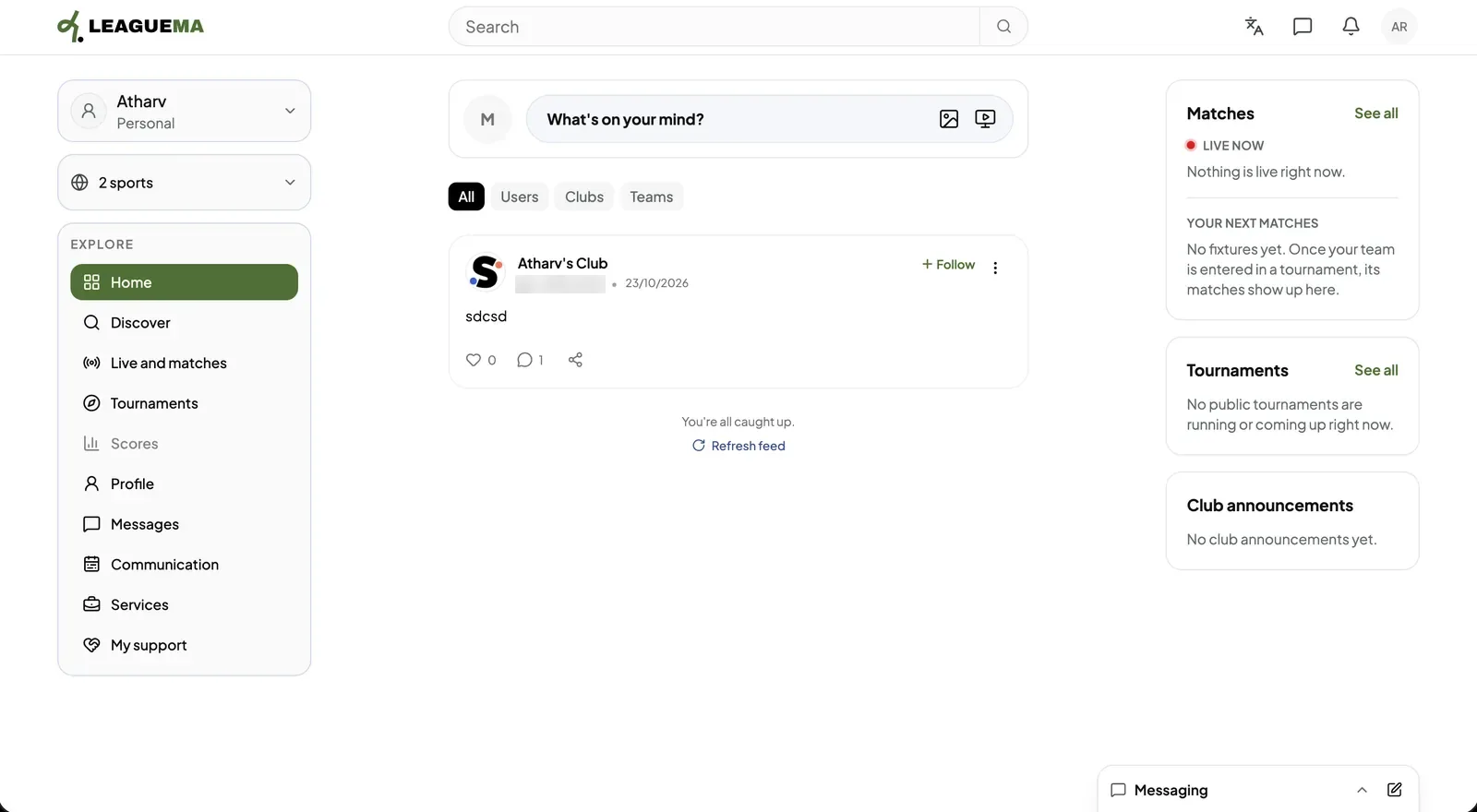
2. Automatic redirect After a successful sign-in, the application opens the Home feed, or the page the user was trying to open before signing in. Incorrect credentials display an error message in the form.
Sign in and reset a password: Automatic redirect

Reset a forgotten password

  1. Click “Forgot password?” in the sign-in form.
  2. Enter the account email and click “Send Verification Code”.
  3. Enter the 6-digit code sent to the address and click “Verify”. The code expires after 10 minutes; “Resend OTP” sends a new one.
  4. Enter and confirm the new password, then click “Reset Password”. The user is signed in and redirected automatically.

Leggi in italiano

Related articles

Previous: Create an account · Next: Select your sports